Pixels to Inches Converter: Accurate Online Tool for Print & Design
Convert pixels to inches online instantly. Enter your pixel value and PPI/DPI to get accurate inch size for screens, printing, and digital design.
At 96 PPI (Standard Screen)
| Pixels (px) | Inches (in) |
|---|---|
| 100 px | 1.04 in |
| 300 px | 3.13 in |
| 600 px | 6.25 in |
| 900 px | 9.38 in |
| 1200 px | 12.50 in |
| 2400 px | 25.00 in |
| 3600 px | 37.50 in |
At 300 PPI (High-Quality Print)
| Pixels (px) | Inches (in) |
|---|---|
| 100 px | 0.33 in |
| 300 px | 1.00 in |
| 600 px | 2.00 in |
| 900 px | 3.00 in |
| 1200 px | 4.00 in |
| 2400 px | 8.00 in |
| 3600 px | 12.00 in |
Use Other Utilities Category Calculators
What Is This Calculator?
The Pixels to Inches Converter transforms a digital measurement, pixels, into a physical measurement, inches. This conversion relies on a key parameter called PPI (Pixels Per Inch) or DPI (Dots Per Inch).
What Is a Pixel?
A pixel is the smallest visible unit in a digital image or display. Every image is made up of thousands or millions of pixels arranged in rows and columns. The more pixels an image contains, the more detailed and sharp it appears.
What Is an Inch?
An inch is a physical unit of length commonly used in printing, screen dimensions, and product measurements. Converting from pixels to inches helps you understand how big an image will actually appear in the real world.
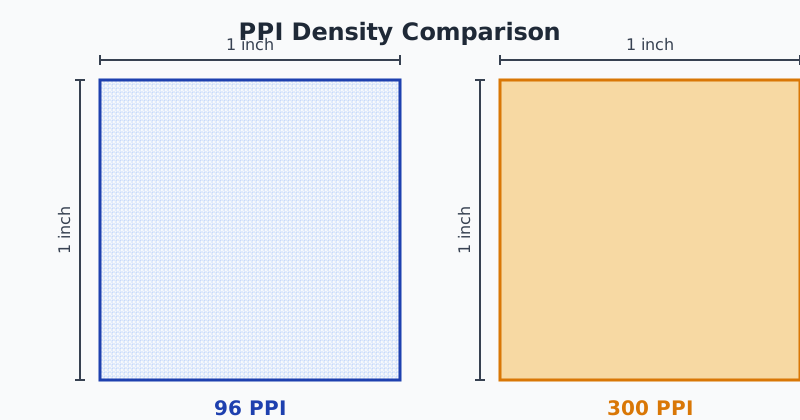
What Are PPI and DPI?
- PPI (Pixels Per Inch): Used mostly for screens. Determines how dense pixels appear on a monitor or device screen.
- DPI (Dots Per Inch): Used mostly for printers. Determines how many dots of ink are printed per inch.
Higher PPI/DPI means more detail in a smaller physical space. To convert pixels to inches, you must know the image's PPI or DPI value.
How Pixels to Inches Conversion Works
To convert pixels (px) to inches (in), you need one simple formula:
Pixels to Inches Formula
Inches = Pixels ÷ PPI
Example:
If an image is 1080px wide and your screen resolution is 96 PPI:
1080 ÷ 96 = 11.25 inches
So, the image will appear approximately 11.25 inches wide on that display.
Reverse Formula (Inches to Pixels)
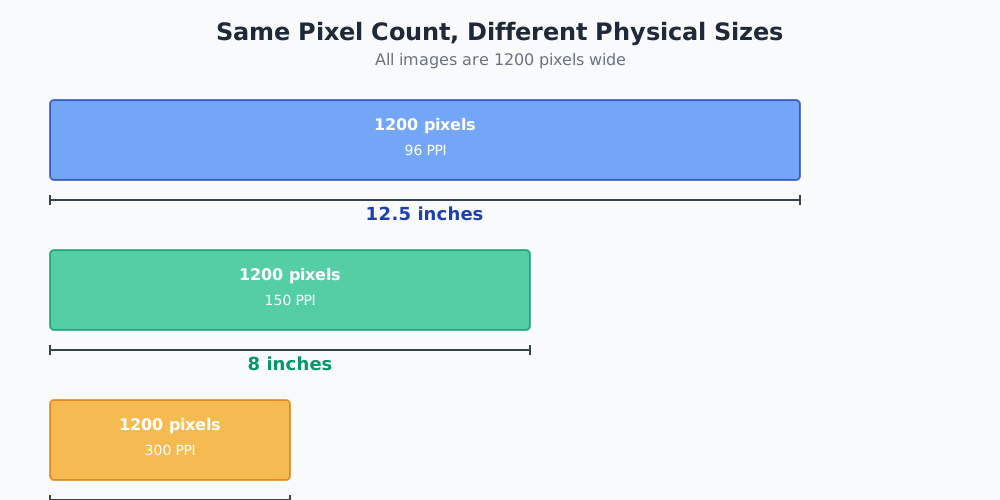
Sometimes users want to calculate how many pixels are needed for a specific inch size.
Inches to Pixels Formula
Pixels = Inches × PPI
Example:
You want an image to print at 4 inches wide with 300 DPI:
4 × 300 = 1200 pixels
So, the image must be 1200px wide for high-quality printing.
Step-by-Step Usage Guide
Using the Pixels to Inches Converter is simple and beginner-friendly. Follow these steps:
Enter the pixel value you want to convert (e.g., width in px or height in px).
Enter the PPI or DPI value of your device or print requirement.
Click the "Convert" button (or the calculator will auto-update if enabled).
Read the output, which shows the exact size in inches.
(Optional) Use the reverse option to convert inches to pixels.
This straightforward approach makes it suitable for designers, students, teachers, printing professionals, and everyday users.
Example Scenarios
Example 1: Screen Display Size
You want to know how large a 1080px element appears on a standard monitor with 96 PPI.
1080px ÷ 96 PPI = 11.25 inches
Result: The image displays at 11.25 inches wide.
Example 2: High-Quality Printing
You want to print an image that is 1200 pixels wide at 300 DPI, which is the standard for high-quality prints.
1200px ÷ 300 DPI = 4 inches
Result: The printed image will be 4 inches wide.
Example 3: Large Poster Printing
You need a 24-inch poster printed at 150 DPI. How many pixels are needed?
24 inches × 150 DPI = 3600 pixels
Result: Your design must be 3600px wide to maintain quality.
Metric Equivalents (Inches to CM & MM)
Many users from metric-measurement countries prefer to understand image sizes in centimeters or millimeters.
Basic Conversion
- 1 inch = 2.54 cm
- 1 inch = 25.4 mm
Example:
If your conversion result is 5 inches, then:
- 5 inches × 2.54 = 12.7 cm
- 5 inches × 25.4 = 127 mm
This helps users worldwide, Europe, India, Asia, Australia, interpret their output easily.
Conclusion
A Pixels to Inches Converter is an essential tool for anyone working with digital images, printing materials, UI design, or screen layouts. By understanding pixels, inches, and PPI/DPI relationships, you can ensure your digital assets display or print at the exact size you intend.
Whether you're printing a poster, resizing a web image, preparing social media graphics, or working with product packaging, this converter makes the process fast, accurate, and user-friendly.
References
For more information on pixel density and resolution, visit W3C CSS Values and Units Module Level 3.
Learn about print resolution standards at ISO 12647 Graphic Technology Standards.
Understand display metrics at MDN Web Docs - devicePixelRatio.
Frequently Asked Questions

Amit Kulkarni
Founder & Editor-in-Chief
Software engineer with 7 years of experience building accurate, reliable calculators. Committed to providing expert-verified tools for finance, health, education, and utilities.